
Transfer Files Between Windows & Linux
Winpinator brings Warpinator to Windows. Share files and folders across your local network with zero configuration and full drag-and-drop support.
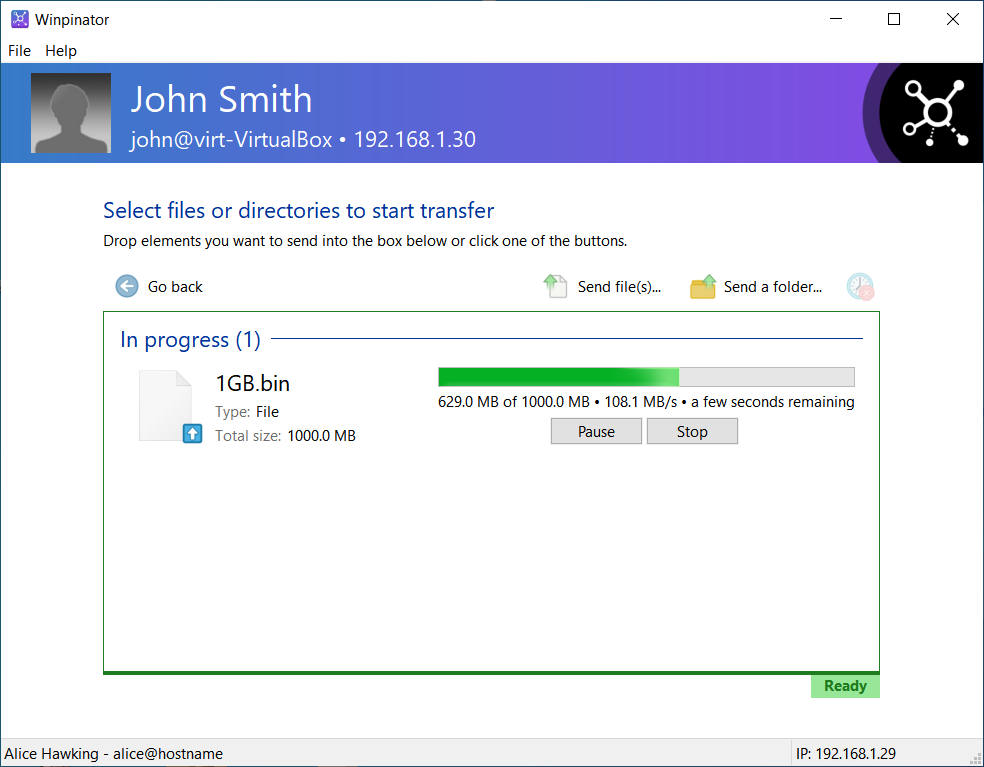
Select files or directories to start transfer
Drop elements you want to send into the box below or click one of the buttons.
What Is Winpinator?
A free, open-source Windows client for the Warpinator network file transfer protocol. Built for people who work across Windows and Linux machines daily.
Cross-Platform File Sharing, Without the Fuss
Winpinator is a Windows application that lets you send and receive files directly between Windows PCs and Linux machines on the same local network. It was written from scratch in C++ by developer Lukasz Swiszcz as an unofficial port of Linux Mint’s Warpinator — the popular LAN file sharing tool that ships with Mint by default.
If you have ever tried to move files between a Windows desktop and a Linux laptop, you know the usual options range from setting up Samba shares to plugging in a USB drive. Winpinator skips all of that. Both devices just need to be on the same Wi-Fi or wired network. The program finds nearby Warpinator clients automatically through mDNS (zeroconf) discovery, and transfers happen directly between the two machines with no cloud server in the middle.
How It Works
Winpinator uses the gRPC protocol under the hood, the same framework that powers Warpinator on Linux. It supports both v1 and v2 of the Warpinator registration protocol, so it works with older and newer versions of Warpinator alike. Transfers are encrypted using libsodium and OpenSSL, which means your files stay private even on shared networks.
You can drag files onto the Winpinator window, use the Windows Explorer “Send to” right-click menu, or browse and select files manually. The program handles individual files, entire folders, and mixed selections. There is optional deflate compression for slower connections, and a transfer history log so you can check what was sent previously.
Who Uses Winpinator?
The program has become especially popular with Steam Deck owners who want to move game files, mods, or saves between their PC and the Deck without uploading anything to the cloud. Users on Reddit have reported transfer speeds over 100 MB/s on a good 5GHz Wi-Fi connection. The application runs quietly in the background, launches at startup if you want it to, and shows toast notifications when new transfers come in.
Winpinator is free, licensed under GPLv3, and the source code is available on GitHub where the project has picked up over 350 stars. The latest release is version 0.1.2, with both 32-bit and 64-bit installers available for Windows 7 through Windows 11.
Automatic Device Discovery
Finds Warpinator clients on your network through mDNS. No manual IP entry or port configuration needed.
Encrypted Transfers
All file transfers use libsodium and OpenSSL encryption. Your data stays private on shared or public networks.
Drag-and-Drop + Send To
Drop files directly onto the window or use the Windows Explorer right-click “Send to” menu for quick transfers.
Full Warpinator Compatibility
Works with both v1 and v2 Warpinator protocols. Pairs with Linux Mint, Ubuntu, Steam Deck, and other Linux distros.
Key Features
Winpinator handles cross-platform file transfers over your local network with no cloud accounts, no sign-ups, and no file size limits.
Automatic device discovery
Winpinator uses mDNS and zeroconf to find Warpinator clients on the same network. You do not need to enter IP addresses or configure anything manually. Open the app and nearby devices appear within seconds.
Full Warpinator compatibility
Supports both v1 and v2 Warpinator registration protocols, so it works with Warpinator on Linux Mint, Ubuntu, Fedora, and any other distro. Your Windows machine shows up as a regular Warpinator peer.
Files, folders, and mixed transfers
Send individual files, entire directory trees, or a mix of both in a single transfer. Winpinator preserves folder structure and handles nested directories without flattening anything.
Drag-and-drop support
Drop files directly onto the Winpinator window to start a transfer. No dialog boxes, no browse-and-select. Just drag from Explorer and let go. It works the way you would expect a file sharing tool to work.
Explorer “Send to” integration
Right-click any file or folder in Windows Explorer and use the “Send to” menu to transfer through Winpinator. Useful for one-off transfers when you do not already have the app window open.
Optional deflate compression
Winpinator can compress files with deflate during transfer to reduce bandwidth usage. On slower networks this speeds things up noticeably, especially for text-heavy or uncompressed file types.
Encrypted transfers
All transfers are secured with libsodium and OpenSSL encryption. Even on shared Wi-Fi networks, your files stay private. The encryption layer runs transparently with no extra configuration required.
Background operation with notifications
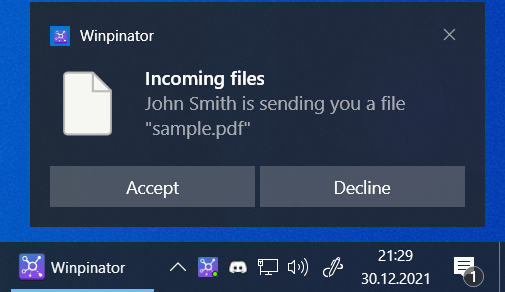
Winpinator can minimize to the system tray and run quietly in the background. When someone sends you a file, a Windows toast notification appears so you can accept or decline without hunting for the window.
Zone information tagging
Received files are tagged with Windows zone information (Mark of the Web), the same security flag browsers apply to downloads. This means Windows treats incoming files with appropriate caution by default.
Transfer history
Winpinator keeps a log of past transfers stored in a local SQLite database. You can look back and see what was sent, when, and to which device. Handy when you cannot remember where that file ended up.
Launch at startup
Toggle automatic startup in the settings and Winpinator will load with Windows. It sits in the system tray ready to accept transfers without you having to remember to open it each time.
Lightweight native app
Built in C++ with wxWidgets, Winpinator uses a native Windows UI and runs with a small memory footprint. The installer is around 15-20 MB and includes all dependencies. No Java, no Electron, no runtime bloat.
Winpinator is free and open source under the GPLv3 license. Download it here and start sharing files between your Windows and Linux machines.
System Requirements
Winpinator runs on most Windows machines without heavy hardware demands. Here is what your system needs.
| Component | Minimum | Recommended |
|---|---|---|
| Operating System | Windows 7 SP1 (32-bit or 64-bit) | Windows 10 version 1809 or later (64-bit) |
| Processor | 1 GHz single-core (x86 or x64) | 2 GHz dual-core or faster |
| RAM | 512 MB | 2 GB or more |
| Disk Space | 50 MB (application files) | 100 MB+ (including temp space for transfers) |
| Display | 1024 x 768 resolution | 1280 x 720 or higher |
| Network | Local area network (Wi-Fi or Ethernet) | Wi-Fi 5 (802.11ac) or Gigabit Ethernet for fast transfers |
| Firewall | Allow Winpinator through Windows Firewall | Automatic firewall rule creation on first run |
| Dependencies | None — bundled with installer | Visual C++ Redistributable (included in installer) |
Tested on Windows 7, 8, 8.1, 10, and 11 — both 32-bit and 64-bit editions
Download Winpinator
Grab the latest installer for your Windows PC. Winpinator works with both 32-bit and 64-bit systems running Windows 7 through Windows 11.
Winpinator for Windows
Pick the right installer for your system. Most modern PCs use the 64-bit version. If you have an older machine or a 32-bit copy of Windows, choose the x86 build instead.
GitHub Releases
Browse all releases, changelogs, and source code directly on the project repository.
View on GitHubWinpinator connects to Warpinator on Linux. Make sure Warpinator is installed on your Linux machine before attempting a transfer. Need help setting things up? Check out the getting started guide.
Screenshots
See how Winpinator handles device discovery, file transfers, and settings on Windows.
Click any screenshot to view full size
Getting Started with Winpinator
From download to your first file transfer in under five minutes. Here is everything you need to set up Winpinator and start sharing files between Windows and Linux.
Head to our download section above and grab the latest release. Winpinator v0.1.2 ships as an NSIS installer (standard Windows .exe setup file) in two versions: 64-bit and 32-bit. If you are running any modern version of Windows from 7 through 11, pick the 64-bit installer. The 32-bit build exists for older hardware or legacy systems that cannot run 64-bit software.
The installer weighs roughly 15-20 MB, so even on a slow connection you should have it within a minute. There is no MSI package or portable ZIP—just the .exe installer. Winpinator does not offer a beta channel or nightly builds. The stable release is the only version available, which keeps things simple.
The download is the same .exe installer regardless of your Windows version. No registration, no account creation, and no license key required—Winpinator is free and open source under the GPLv3 license.
Double-click the downloaded winpinator_setup_0.1.2_x64.exe file to launch the installer. You may see a Windows SmartScreen warning since Winpinator is not code-signed by a commercial certificate authority. Click “More info” and then “Run anyway” to proceed.
The installer walks through these screens:
- Language selection: Choose English or Polish. This sets the installer language only—you can change the app language later in Preferences.
- Welcome screen: A standard greeting page with the Winpinator branding on the left side. Click Next.
- License agreement: Displays the GPL-3.0 license. Read through it and click I Agree to continue.
- Choose install location: Defaults to
C:\Program Files\Winpinatorfor 64-bit. Change this only if you have a reason to install somewhere else. - Components: This screen has four checkboxes:
- Winpinator (required, always checked) — the main application
- Runtime libraries — installs the Visual C++ 2015-2022 runtime. The installer auto-detects whether you already have it. Leave it checked if unsure.
- Create desktop shortcut — unchecked by default. Check it if you want quick access from your desktop.
- Explorer integration — checked by default. This adds Winpinator to the Windows Send to right-click menu, which is extremely useful. Keep it enabled.
- Start Menu folder: Defaults to “Winpinator.” Click Install to begin copying files.
- Finish: Two checkboxes appear — “Run Winpinator” and “Show Release notes.” Check “Run Winpinator” to launch immediately.
For automated deployment, the installer supports silent mode. Run it from the command line with:
winpinator_setup_0.1.2_x64.exe /S
This installs with all default options and no user interaction.
Winpinator is Windows-only software. On the Linux side, install Warpinator through your distribution’s package manager. On Linux Mint and Ubuntu: sudo apt install warpinator On Flatpak-based systems: flatpak install flathub org.x.Warpinator
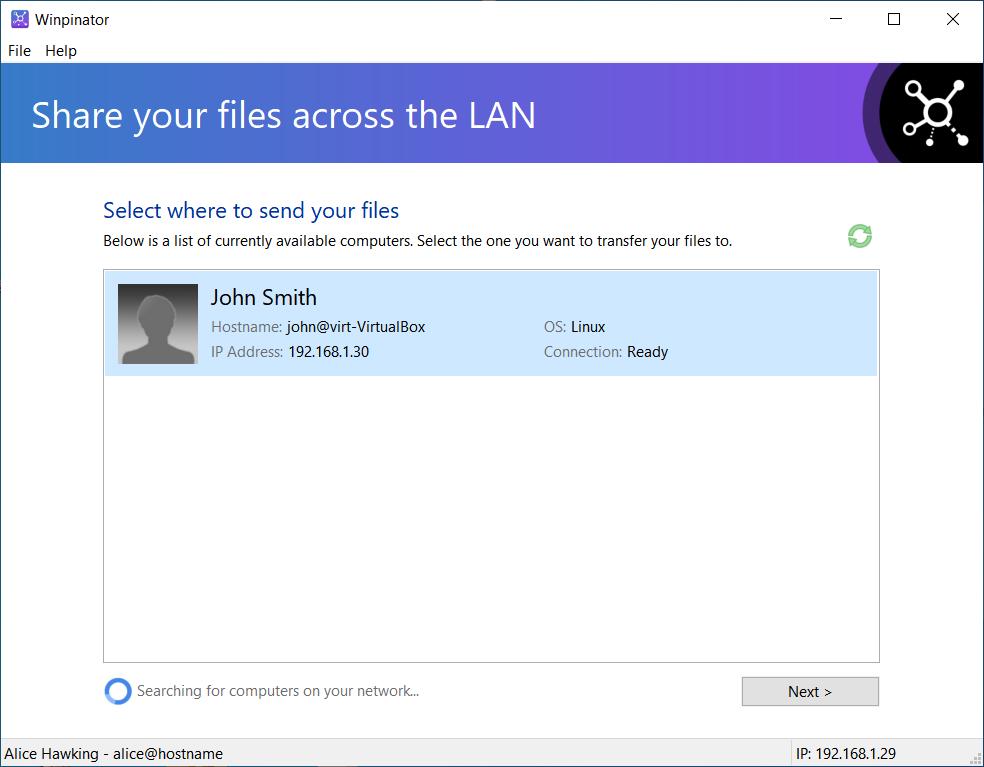
When Winpinator launches for the first time, there is no setup wizard. The main window opens directly to the host discovery screen with the headline “Select where to send your files” and a list area below it. The status bar at the bottom shows your computer’s display name on the left and your IP address on the right.
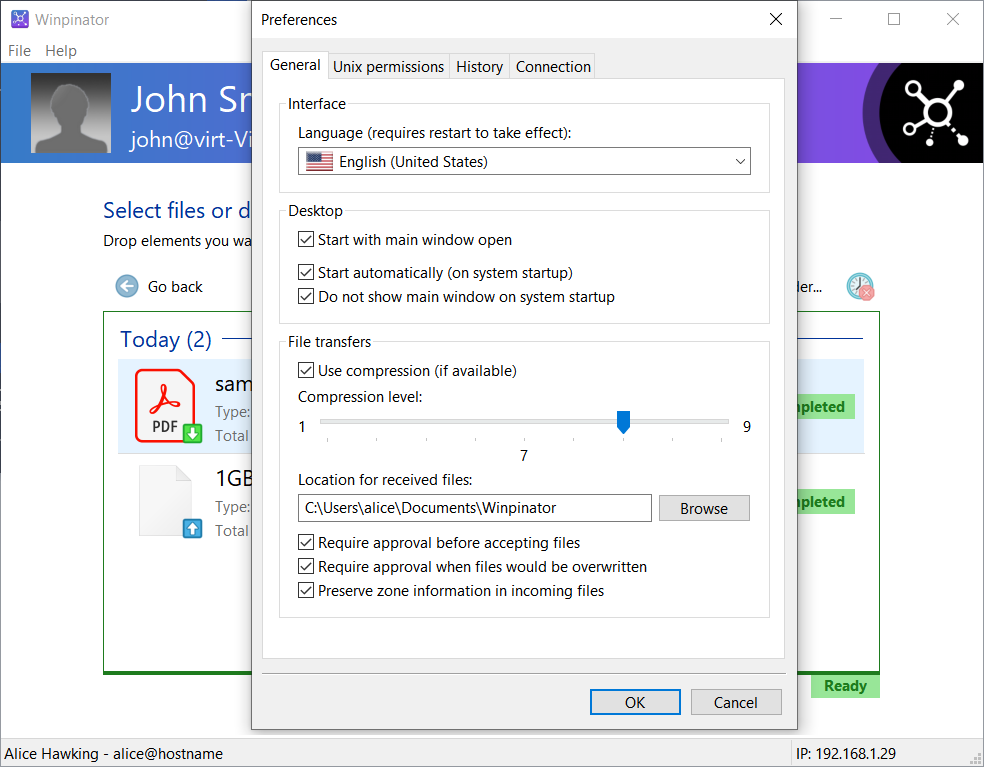
Before your first transfer, open File > Preferences to configure a few settings. The Preferences dialog has four tabs:
General tab (start here):
- Language: Choose from the dropdown if you want a different UI language (English or Polish).
- Start automatically (on system startup): Check this if you transfer files regularly. Winpinator will launch minimized to the system tray when Windows boots.
- Do not show main window on system startup: Pairs with the above setting. Keeps Winpinator running in the background without popping up a window every login.
- Location for received files: This is where incoming transfers get saved. The default is your Downloads folder, but you can change it to any directory you prefer.
- Require approval before accepting files: Enabled by default. Keep this on—it prevents other people on your network from dumping files on your machine without asking.
- Use compression (if available): Enable this for faster transfers of compressible file types like documents and text files. The compression level slider goes from 1 (fastest) to 9 (smallest). Level 4-5 is a good middle ground.
Connection tab (check this if discovery fails):
- Group code: Must match the group code on your Warpinator Linux machine. The default is “Warpinator” on both sides. If you changed it on Linux, update it here too.
- Network interface: Set to “Automatic” by default. If Winpinator cannot find your Linux peer, switch this to your actual Wi-Fi or Ethernet adapter from the dropdown.
- Transfer port: Default is 42000. Only change if another application uses this port.
- Registration port: Default is 42001. Same as above—leave it unless there is a conflict.
With both Winpinator (Windows) and Warpinator (Linux) running on the same local network, they should discover each other within a few seconds. You will see the Linux machine appear in the host list with its hostname, IP address, and a green status dot indicating it is online and ready.
Let’s send a file from Windows to Linux:
- In the Winpinator host list, click on your Linux machine’s name. The entry highlights to show it is selected.
- Click the “Next >” button at the bottom-right corner. This opens the transfer view.
- The banner at the top changes to show the selected peer’s name and IP address on a blue-to-purple gradient background.
- Click “Send file(s)…” in the toolbar to open a file browser. Pick one or more files and click Open. Or click “Send a folder…” to send an entire directory.
- Your files are now queued. The transfer list shows the file names, sizes, and status: “Awaiting approval from [peer name]…”
- On the Linux machine, Warpinator pops up a notification. Accept the transfer there.
- Back on Windows, the progress bar fills up showing transfer speed and time remaining (for example, “25.4MB of 100.2MB – 5.2MB/s – 12 secs remaining”).
Receiving files from Linux: When someone sends files from Warpinator to your Windows machine, a Windows toast notification appears. Open Winpinator, and you will see the pending transfer with Accept and Decline buttons. Click Accept to save the files to your configured receive folder.
The fastest method — Send To menu: Right-click any file or folder in Windows Explorer, go to Send to > Winpinator. This launches Winpinator with those files pre-loaded. Select your Linux peer from the host list, click Next, and the transfer starts immediately. No need to manually browse for files.
Drag and drop also works. Open Winpinator, navigate to a peer’s transfer view, and drag files directly from Explorer into the Winpinator window.
Performance tuning: Enable compression in File > Preferences > General for document-heavy transfers. For large media files (videos, disk images), compression adds overhead without shrinking the data, so you can leave it off. Set compression level to 3-4 for the best speed-to-size ratio.
Common beginner mistakes:
- Forgetting to allow Winpinator through Windows Firewall on first launch. If peers are not showing up, check Windows Security > Firewall > Allow an app through firewall and make sure Winpinator is listed and checked for both Private and Public networks.
- Having mismatched group codes between Winpinator and Warpinator. Both must use the same code (default: “Warpinator”).
- Running a VPN that reroutes all local traffic. Disconnect or split-tunnel before transferring.
Features you might not know about:
- Transfer history: Winpinator logs every transfer. Check Preferences > History to review past sessions, see which peers you have exchanged files with, and clear old records.
- Zone information tagging: In Preferences > General, the “Preserve zone information in incoming files” option tags downloaded files with a security mark. Windows will then prompt “This file came from another computer” when you try to run received executables—an extra safety layer.
- Unix permissions: The Preferences > Unix permissions tab lets you set file and folder permission masks for files sent to Linux. Useful if you send scripts that need to be executable on arrival.
- Background operation: Closing the Winpinator window does not stop it. The app keeps running in the system tray. Use Ctrl+Alt+F4 or File > Exit and stop the service to fully quit.
Getting help: Winpinator’s developer tracks issues on the GitHub repository. For general questions, search Reddit communities like r/linuxmint or r/SteamDeck where many users share tips. There is no official Discord server or forum, but the GitHub Issues section covers most known problems and workarounds.
Ready to start? Download Winpinator and share your first file in under five minutes.
Frequently Asked Questions
Answers to the most common questions about downloading, installing, and using Winpinator for cross-platform file transfers.
Is Winpinator safe to download and install?
Yes, Winpinator is safe. The entire source code is publicly available on GitHub under the GPLv3 license, which means anyone can audit it for security issues. The installer has been scanned on VirusTotal with clean results across major antivirus engines.
One thing that catches people off guard: Windows Defender SmartScreen will likely block the installer the first time you run it. This happens because the .exe is not digitally signed with an expensive code-signing certificate, and it has a relatively low download count in Microsoft’s reputation database. The software itself is clean. To proceed, click “More info” and then “Run anyway.”
Winpinator transfers files only over your local network. No data passes through external servers or leaves your LAN. The application uses libsodium and OpenSSL for encrypted transfers, and a shared group code acts as a pairing secret between devices.
- Source code: fully open on GitHub (350+ stars)
- No ads, no telemetry, no tracking, no bundled software
- Transferred files get Windows “Zone Information” tagging for added security
- LAN-only operation — nothing goes through the internet
Pro tip: If Windows Defender flags the installer, right-click the downloaded file, go to Properties, and check “Unblock” before running it. This avoids the SmartScreen popup entirely.
For verified download links, see our download section.
Where is the official safe download for Winpinator?
The official Winpinator download comes from two sources: the developer’s website at winpinator.swisz.cz and the GitHub releases page at github.com/swiszczoo/winpinator/releases. Both host the same v0.1.2 installer files.
Be careful with search results. Several third-party download sites repackage the installer or wrap it with their own bundlers. A common mistake is downloading from sites like “warpinator.com,” which is not affiliated with the original Linux Mint Warpinator project. The safest approach is to get the file directly from GitHub releases, where you can verify the file hash against the published checksums. Winpinator is also available on Chocolatey (choco install winpinator) for users who prefer package managers.
- GitHub releases: github.com/swiszczoo/winpinator/releases (primary source)
- Developer site: winpinator.swisz.cz (SSL certificate was expired but has been addressed)
- Chocolatey:
choco install winpinatorfor automated install - Installer size: approximately 15-20 MB for both 32-bit and 64-bit versions
Pro tip: Using Chocolatey handles installation and future updates with a single command, and the package is community-maintained with checksum verification built in.
Grab the latest version from our download section, which links directly to the official sources.
Is Winpinator free from malware and spyware?
Yes, Winpinator contains no malware, spyware, or adware. It is a genuine open-source project with every line of code visible on GitHub for public review. The repository has 350+ stars and 140+ commits from the developer Lukasz Swiszcz.
The application collects zero user data. There are no analytics calls, no crash reporting services, and no network requests beyond your local LAN. Winpinator does not even require an internet connection to function — it works entirely over your local router or hotspot. Transfer history is stored in a local SQLite database on your machine, not in the cloud.
Some antivirus programs may flag the installer as “PUA” (Potentially Unwanted Application) due to the NSIS installer format and lack of a code-signing certificate. This is a false positive. You can verify this by uploading the installer to VirusTotal yourself, where the detection rate from reputable engines sits at 0/70+.
Pro tip: After transferring files, Windows may block them with a “security zone” marker. Right-click the received file, open Properties, and click “Unblock” if you see that checkbox at the bottom of the General tab.
Check our features overview for more on the security architecture.
Does Winpinator work on Windows 11?
Yes, Winpinator works on Windows 11 without issues. It also supports Windows 10, Windows 8.1, and Windows 8. Windows 7 works with the Universal C Runtime (UCRT) update installed, though toast notifications are unavailable on that older OS.
Winpinator v0.1.2 ships as both 32-bit and 64-bit installers. On a modern Windows 11 machine, go with the 64-bit version. The system requirements are minimal: 128 MB of RAM, about 50 MB of disk space, and a 1024×768 display. The installer automatically checks for and installs the Visual C++ Redistributable if your system needs it.
On the other end, you need a Linux device running Warpinator. This covers Linux Mint (where Warpinator comes preinstalled), Ubuntu, Fedora, and any distro that can install Warpinator via Flatpak or native packages. Steam Deck users with SteamOS are fully supported too — Warpinator is one of the most popular file transfer tools in the Steam Deck community.
- Windows 11 (all versions): fully supported
- Windows 10 (version 1607+): fully supported
- Windows 8/8.1: supported
- Windows 7: works with UCRT update, no toast notifications
Pro tip: If you are using Windows 11 with a VPN active, Winpinator may pick the wrong network interface. Go to Preferences and manually select your Wi-Fi or Ethernet adapter instead of leaving it on “Automatic.”
See full hardware and software specs on our system requirements page.
What are the system requirements for Winpinator?
Winpinator runs on almost any Windows PC from the last 15 years. The minimum requirements are low: 128 MB of RAM, 50 MB of free disk space, and a screen resolution of at least 1024×768. You need Windows 8 or later for full functionality.
The application is built in C++ with wxWidgets for the UI, so it runs natively without .NET or Java. The installer bundles its dependencies (gRPC, protobuf, libsodium, OpenSSL, zlib) and checks for the Visual C++ Redistributable automatically. Both 32-bit and 64-bit builds are available, so older machines with x86-only CPUs are covered.
The bigger factor is your network. For practical file transfers, you want:
- Both devices connected to the same Wi-Fi network or LAN
- 5 GHz Wi-Fi band for speeds around 20-35 MB/s (2.4 GHz gives roughly 6-10 MB/s)
- Ethernet on at least one device pushes speeds to 35-60 MB/s on Wi-Fi 6
- Firewall rules allowing UDP port 5353 (mDNS) and TCP ports 42000-42001 (transfer and registration)
Pro tip: If you are transferring large files (10+ GB), plug one device into Ethernet via cable. Even connecting just the Windows PC to your router with an Ethernet cable while the Linux machine stays on Wi-Fi can double or triple your transfer speeds.
Full specs are listed in our system requirements table.
Does Winpinator work with Steam Deck?
Yes, Winpinator pairs with the Steam Deck through Warpinator, which runs on the Deck’s SteamOS (Arch Linux). Many Steam Deck owners call this combination a “godsend” for moving game files, ROMs, and media from their Windows PC to the Deck wirelessly.
To set this up, switch your Steam Deck to Desktop Mode, open the Discover store (or use flatpak install flathub org.x.Warpinator), and install Warpinator. On your Windows PC, install Winpinator. Make sure both devices sit on the same Wi-Fi network, and that the group code matches in both apps (the default is “Warpinator”).
A few things to know about Steam Deck transfers specifically:
- Files land in the ~/Warpinator folder on the Deck by default — not your Steam library
- If you are transferring games, you still need to move them to the correct Steam library folder and let Steam “discover” them
- The Flatpak version of Warpinator may not have permission to write to your SD card. Use Flatseal to grant filesystem access
- Typical transfer speed on Steam Deck Wi-Fi: 15-25 MB/s, depending on distance from router
Pro tip: Before your first transfer, open Warpinator on the Steam Deck, go to Preferences, and change the save location to your SD card or Steam library path directly. This saves you from manually moving files after each transfer.
Read our getting started guide for the full setup walkthrough.
Is Winpinator completely free to use?
Yes, Winpinator is 100% free with no paid tiers, no premium features locked behind a paywall, and no in-app purchases. The software is released under the GNU General Public License v3.0, which means it will remain free and open-source permanently.
There is no registration, no account creation, and no email required to download or use Winpinator. The application has no ads and collects no user data. It works entirely offline on your local network — you do not even need an active internet connection after downloading the installer.
Because Winpinator transfers happen over your local router, they do not count against your ISP data cap. The traffic never leaves your home network. You could transfer 500 GB of files and your ISP would not see a single byte of it. This is a common question from users with metered internet plans.
For context, the original Warpinator on Linux is also free and maintained by the Linux Mint team. Winpinator is a third-party port written by developer Lukasz Swiszcz, who built it from scratch in C++ to bring the same functionality to Windows.
Pro tip: You can even use Winpinator on a mobile hotspot with cellular data disabled. As long as both devices connect to the same hotspot, transfers work without using any mobile data.
Head to our download section to get started for free.
What license does Winpinator use?
Winpinator uses the GNU General Public License version 3.0 (GPLv3). This is a copyleft license, meaning the source code must remain open and any modifications or forks also need to be released under the same license.
For everyday users, the GPLv3 license means you can download, install, use, copy, and distribute Winpinator freely. There are no usage restrictions for personal, educational, or commercial use. You can install it on as many computers as you want without any licensing fees or activation keys.
If you are a developer or IT administrator, the GPLv3 also gives you the right to modify the source code. The full C++ codebase, including the wxWidgets UI code, gRPC networking layer, and mDNS discovery system, is available at github.com/swiszczoo/winpinator. The project has about 140 commits and uses C++14 with CMake as the build system.
- Personal use: unlimited, free
- Business/enterprise use: permitted, no license fees
- Redistribution: allowed if you include the GPLv3 license text
- Modification: allowed, but modified versions must also be GPLv3
Pro tip: If you want to build Winpinator from source, the GitHub repository includes detailed build instructions using MSYS2/MinGW64 and vcpkg for dependency management.
Learn more about what Winpinator offers on our features page.
How do I install Winpinator step by step?
Installing Winpinator takes about two minutes. Download the 64-bit installer (or 32-bit for older machines) from the official GitHub releases page, run the setup file, and follow the NSIS installer prompts.
Here is the full process:
- Download the installer from our download section (approximately 15-20 MB)
- Double-click the downloaded .exe file. Windows SmartScreen may show a warning — click “More info” then “Run anyway”
- Choose your installation directory (the default C:\Program Files\Winpinator works fine)
- The installer checks for the Visual C++ Redistributable and installs it if missing
- Click “Install” and wait a few seconds for the files to copy
- Launch Winpinator from the Start menu or desktop shortcut
After the first launch, open Preferences and do two things: select your active network interface (Wi-Fi or Ethernet) instead of “Automatic,” and confirm that the group code matches the one set in Warpinator on your Linux device. The default group code is “Warpinator” on both sides.
Winpinator automatically adds itself to the Windows Explorer “Send to” context menu. You can right-click any file in Explorer and choose “Send to > Winpinator” to start a transfer.
Pro tip: If you use Chocolatey, you can skip the manual download entirely: run choco install winpinator in an elevated terminal and it handles everything, including the Visual C++ dependency.
For a more detailed walkthrough, check our getting started guide.
How do I set up Winpinator to connect with Warpinator on Linux?
Both devices need to be on the same local network, and the group code must match. That is really the only requirement. No port forwarding, no account creation, no cloud service involved.
The setup works like this: Winpinator on Windows uses mDNS (multicast DNS) to discover Warpinator instances on the same network. When both apps have the same group code and are on the same subnet, they find each other automatically within a few seconds. You will see the Linux device appear in the Winpinator window with a green “Online” status indicator.
- Install Winpinator on Windows and Warpinator on Linux (from your distro’s package manager or Flatpak)
- Connect both devices to the same Wi-Fi network
- Open Winpinator, go to Preferences > Connections, and check the group code (default: “Warpinator”)
- On the Linux side, open Warpinator preferences and confirm the same group code
- In Winpinator, manually select your Wi-Fi or Ethernet adapter under the network interface dropdown — do not leave it on “Automatic”
- Both devices should appear in each other’s device list within 10-15 seconds
If devices do not appear, the most likely causes are: different subnets (some routers isolate 2.4 GHz and 5 GHz bands), a firewall blocking UDP port 5353, or the network interface set to the wrong adapter.
Pro tip: If automatic discovery fails, try restarting both applications. Winpinator supports both v1 and v2 Warpinator registration protocols, so it should work with any recent version of Warpinator.
Read the full connection guide in our getting started section.
How to fix Winpinator installation errors on Windows?
Most installation problems come down to three things: SmartScreen blocking, a missing Visual C++ Redistributable, or a previous Winpinator instance still running in the background.
The SmartScreen issue is the most common. Because Winpinator’s installer is not code-signed, Windows treats it as an “unrecognized app.” Click “More info” on the blue SmartScreen window, then “Run anyway.” If your organization’s group policy blocks unsigned executables entirely, ask your IT administrator to whitelist the installer or use the Chocolatey package instead.
For the Visual C++ issue: Winpinator v0.1.2 checks for the correct redistributable version and installs it automatically. Earlier versions (v0.1.0 and v0.1.1) had a bug where the version check failed and showed an error dialog. If you are on an older version, update to v0.1.2 or manually install the Visual C++ 2015-2022 Redistributable from Microsoft’s website.
- SmartScreen block: “More info” then “Run anyway,” or right-click the file > Properties > Unblock
- Visual C++ missing: download the latest VC++ Redistributable from microsoft.com/en-us/download
- Installer hangs: check Task Manager for an existing winpinator.exe process and end it before reinstalling
- Antivirus quarantine: add an exclusion for the installer file in your antivirus settings
Pro tip: If the installer fails repeatedly, try running it as Administrator (right-click > “Run as administrator”). Some systems require elevated permissions to install the Visual C++ runtime.
See our system requirements for supported Windows versions and dependencies.
Why can’t Winpinator find my Linux device on the network?
Device discovery failures are the most reported issue with Winpinator, and the fix is almost always the same: manually select the correct network interface instead of using “Automatic.”
When Winpinator is set to “Automatic” for the network interface, it sometimes picks the wrong adapter — a VPN tunnel, a Docker bridge, or a disabled Wi-Fi adapter. This sends mDNS discovery packets to the wrong network, so the Linux device never sees them. Go to Preferences in Winpinator and explicitly choose your active Wi-Fi or Ethernet adapter from the dropdown.
If that does not fix it, work through this checklist:
- Confirm both devices are on the same Wi-Fi network (some routers separate 2.4 GHz and 5 GHz into different subnets)
- Check that the group code matches exactly on both sides (it is case-sensitive)
- Open Windows Firewall and allow Winpinator through, or manually open UDP 5353 and TCP 42000-42001
- Restart both Winpinator and Warpinator — close fully (the X button minimizes to tray; use “Exit and stop the service” instead)
- Disable any active VPN on the Windows machine
- If using Warpinator via Flatpak, make sure it has network permissions (check with Flatseal)
Pro tip: If devices still cannot find each other after trying everything above, try incrementing the port numbers by +1 on both devices (from 42000 to 42001, and 42001 to 42002). This resolves a known issue where a Warpinator update changed the registration protocol.
More connection advice in our getting started guide.
Winpinator transfer failed or keeps disconnecting – how do I fix it?
Transfer failures usually come from unstable Wi-Fi or a Warpinator version mismatch between the Windows and Linux sides. Unfortunately, Winpinator does not support resuming interrupted transfers — if a transfer fails, it restarts from scratch.
Unstable Wi-Fi is the most common cause. If you are far from your router or on a congested 2.4 GHz band, large transfers (1 GB+) can time out mid-transfer. Switching to 5 GHz Wi-Fi or connecting one device via Ethernet cable makes a dramatic difference. Users on Reddit report going from constant failures on 2.4 GHz to flawless 30+ MB/s transfers after switching.
The version mismatch issue happens when Warpinator updates on the Linux side and changes its registration protocol. Winpinator v0.1.2 supports both v1 and v2 protocols, but some edge cases still cause “Waiting for two-way connection” errors that eventually time out.
- Switch to 5 GHz Wi-Fi or connect one device via Ethernet
- Move closer to your router if on wireless
- Close background applications using heavy bandwidth (streaming, downloads)
- Try incrementing ports by +1 on both devices if you see “connection failed” errors
- For very large files (10+ GB), consider splitting them into smaller archives first
Pro tip: Enable compression in Winpinator’s preferences (Preferences > Transfers > Use compression). This helps significantly with text files, documents, and uncompressed data, though it adds overhead for already-compressed formats like .mp4 or .zip.
Check our features page for details on transfer protocols and compression support.
Winpinator won’t start or crashes on launch – what should I do?
If Winpinator refuses to start, the most likely cause is a previous instance still running silently in the system tray, or a corrupted network interface setting in the configuration.
Winpinator has an unusual close behavior: clicking the X button does not actually quit the program. It minimizes to the system tray and keeps running in the background. If you try to launch it again while the old instance is still there, nothing visible happens. Open Task Manager (Ctrl+Shift+Esc), find winpinator.exe in the process list, and end it. Then relaunch.
A more serious crash scenario involves the network interface setting. If you previously selected a network adapter that has since been removed or disabled (unplugging a USB Wi-Fi dongle, for example), Winpinator crashes immediately on startup before you can reach the preferences to fix it. This is a known bug (GitHub Issue #26).
- Open Task Manager and kill any running winpinator.exe processes
- Try launching Winpinator again
- If it still crashes instantly, open Registry Editor (regedit), navigate to HKEY_CURRENT_USER\Software\Winpinator, and delete the network interface key
- If the registry approach feels too risky, uninstall and reinstall Winpinator — this resets all settings
- Make sure the Visual C++ Redistributable 2015-2022 is installed
Pro tip: To properly exit Winpinator instead of minimizing it, right-click the system tray icon and select “Exit and stop the service.” A community feature request (GitHub Issue #36) asks for the X button to actually close the app, but this has not been implemented.
View the minimum software dependencies on our system requirements page.
How do I update Winpinator to the latest version?
Winpinator does not have a built-in auto-updater. To update, you need to download the latest installer from the GitHub releases page and run it over your existing installation.
The current version is v0.1.2, released on February 18, 2022. This version fixed a bug with the Visual C++ Redistributable version check and resolved an issue where an error dialog appeared when the app could not find account pictures on the system. Settings are now saved immediately instead of on exit.
If you installed via Chocolatey, updating is simpler: run choco upgrade winpinator in an elevated terminal. Chocolatey checks for the latest package version and handles the update automatically.
- Check the current version: open Winpinator, go to Help > About
- Visit github.com/swiszczoo/winpinator/releases to see if a newer version exists
- Download the new installer (64-bit or 32-bit matching your current install)
- Run the installer — it overwrites the old version while preserving your settings and transfer history
Pro tip: Star the GitHub repository to get notified of new releases. Click the “Watch” dropdown and select “Releases only” to avoid noise from issues and pull requests.
Download the current version from our download section.
Is Winpinator still being maintained and updated?
Honestly, no. Winpinator’s last release was v0.1.2 in February 2022, and the GitHub repository has had no code commits since April 2022. The project appears effectively inactive, with 22 open issues that remain unresolved.
That said, v0.1.2 still works with current versions of Warpinator on Linux for most users. The gRPC protocol and mDNS discovery it uses have not changed fundamentally, so basic file transfers continue to function on Windows 10 and 11. The developer (Lukasz Swiszcz) has not announced end-of-life, but the lack of activity speaks for itself.
If you need a more actively maintained option, there is a separate project called “Warpinator for Windows” by slowscript (github.com/slowscript/warpinator-windows), built in C#/.NET. It released v1.1 more recently and some users report more reliable connections. The original Warpinator on Linux, maintained by the Linux Mint team, continues to receive regular updates (versions 1.6.x and beyond).
- Last Winpinator release: v0.1.2 (February 18, 2022)
- Last GitHub commit: April 2022
- Open issues: 22, mostly unresolved
- Alternative: slowscript/warpinator-windows (C#/.NET, more recent updates)
Pro tip: Despite being unmaintained, Winpinator v0.1.2 remains lightweight and functional. If it works for your use case, there is no pressing reason to switch — just be aware that new bugs or compatibility issues will not be fixed upstream.
Compare options on our features page.
Winpinator vs LocalSend vs KDE Connect – which is better for file transfers?
It depends on what you need. Winpinator does one thing well: transferring files between Windows and Linux over a local network with zero configuration. LocalSend is more reliable and works across more platforms. KDE Connect does far more than file transfers.
Winpinator is the simplest option for someone who just wants to move files between a Windows PC and a Linux machine (or Steam Deck). It uses the Warpinator protocol, finds devices automatically on your LAN, and supports drag-and-drop. The downside is that discovery can be finicky, there is no transfer resume, and the project is no longer actively maintained.
LocalSend has become the go-to recommendation on Reddit for cross-platform file sharing. It works on Windows, macOS, Linux, Android, and iOS. It uses its own protocol, requires zero setup, and handles large transfers without the connection drops that sometimes affect Winpinator. It is also open-source and actively maintained.
KDE Connect is a full device integration suite. Beyond file transfers, it syncs clipboard content, mirrors phone notifications on your desktop, lets you use your phone as a remote input device, and controls media playback across devices. It works on Windows, Linux, and Android. If you only need file transfers, KDE Connect is overkill.
- Winpinator: best for simple Windows-to-Linux transfers with Warpinator protocol compatibility
- LocalSend: best for reliable, multi-platform file sharing with zero setup
- KDE Connect: best if you want full device integration beyond just files
- Syncthing: best for continuous folder synchronization (not one-off transfers)
- SMB/Samba: best for ongoing network drive access, but more complex to configure
Pro tip: You can run Winpinator and LocalSend side by side. Use Winpinator when connecting with an existing Warpinator setup on Linux, and LocalSend for everything else, including transfers to phones and Macs.
See what makes Winpinator unique on our features page.
Does Winpinator use my internet data or count against my ISP data cap?
No. Winpinator transfers files exclusively over your local network (LAN). The data travels between devices through your router but never reaches the internet. Your ISP cannot see the traffic and it does not count against any data cap or bandwidth limit.
This is a common question, especially from Steam Deck users transferring large game files (sometimes 50-100 GB). All that data stays inside your home network. Think of it like copying files between two computers plugged into the same router — the router handles the traffic internally, and the WAN port is not involved.
You can even use Winpinator on a phone hotspot with mobile data turned off. Create a hotspot on your phone, connect both your Windows PC and Linux device to that hotspot, and transfers will work. The hotspot acts as a local router. As long as you keep mobile data disabled, nothing goes through your cellular plan.
Transfer speeds depend on your local network hardware, not your internet plan:
- 2.4 GHz Wi-Fi: 6-10 MB/s
- 5 GHz Wi-Fi (802.11ac): 20-35 MB/s
- Wi-Fi 6 with one device on Ethernet: 35-60 MB/s
- Both devices on Ethernet (if both are near your router): 80-100+ MB/s
Pro tip: Your internet connection speed (e.g., 100 Mbps fiber) has absolutely nothing to do with Winpinator transfer speeds. A 10 Mbps internet plan with a good AC router will give you faster local transfers than a 1 Gbps plan with a cheap 2.4 GHz router.
Learn about transfer protocols on our features page.
Can I use Winpinator to transfer files over the internet?
No, Winpinator only works on local networks. It uses mDNS for device discovery, which is limited to your local subnet by design. There is no built-in support for transfers between devices on different networks or over the internet.
This is an intentional design choice inherited from Warpinator. The idea is quick, simple file sharing between devices in the same room or building — no accounts, no cloud storage, no servers. For transfers between different locations, you need a different tool.
If you want Warpinator-like simplicity over the internet, here are your options:
- Tailscale + SMB: install Tailscale on both devices to create a virtual LAN, then share files via SMB or even Winpinator (since Tailscale makes remote devices appear “local”)
- Syncthing: encrypted, peer-to-peer folder sync that works across the internet without port forwarding
- Croc / Magic Wormhole: command-line tools for one-off encrypted file transfers using relay servers
- Cloud storage (Google Drive, Dropbox): upload from one device, download on the other — simple but speed depends on your internet connection
Some users on Reddit have reported getting Winpinator to work over a VPN by putting both devices on the same virtual subnet. This is technically possible with Tailscale, ZeroTier, or WireGuard, but it is not an officially supported configuration and may require manual port forwarding.
Pro tip: If you regularly need to transfer files between a home PC and a remote Linux server, Syncthing is probably the best option. It runs in the background, syncs folders automatically, handles connection drops gracefully, and encrypts everything end-to-end.
For local network transfers, see our download section to get Winpinator.
How do I configure Winpinator’s network ports and firewall settings?
Winpinator uses three network ports by default: UDP 5353 for mDNS device discovery, TCP 42000 for file transfers, and TCP 42001 for device registration. All three need to be open in your firewall for the application to work.
On most home networks, Winpinator’s installer creates the necessary Windows Firewall rules automatically. If it does not, or if you are using a third-party firewall (Norton, Kaspersky, etc.), you need to add the rules manually. In Windows Defender Firewall, go to “Allow an app through firewall” and make sure Winpinator is checked for both Private and Public networks.
If you need to add rules manually or change the port numbers:
- Open Winpinator and go to Preferences > Connections
- You will see the port number fields — the defaults are 42000 (transfer) and 42001 (registration)
- If those ports conflict with another application, change them — but you must set the same port numbers in Warpinator on the Linux side
- In Windows Firewall > Advanced Settings > Inbound Rules, create new rules for TCP 42000-42001 and UDP 5353 if they do not already exist
- On Linux, check that your firewall (ufw, firewalld) allows the same ports
Corporate and university networks often block mDNS traffic on port 5353, which prevents device discovery entirely. If you are on a managed network and cannot change firewall rules, Winpinator will not work — consider using Syncthing or SMB shares instead.
Pro tip: If discovery breaks after a Warpinator update on the Linux side, try incrementing all port numbers by +1 on both devices (42001/42002 instead of 42000/42001). This fixes a known protocol version conflict between older Winpinator and newer Warpinator versions.
See all connection requirements in our system requirements section.